
Rentals & Service Tutorial
This tutorial takes you from installing Summit & Spokes Rentals to running your first rental and service orders. Work through the parts in order: each one builds on the one before. Plan an afternoon for one store and a few dozen products, or about an hour if your gear is already in a spreadsheet.
How the app is organized
Everything is reached from five tabs across the top of the app:
- Daily Operations: rental and service orders, pickup and return, calendars and customers.
- Periodic Operations: gear, packages, rates, coupons and services, the things you set up once and adjust now and then.
- Reporting: sales, customer, gear and service reports, with CSV export.
- Tools: the DIN and bike fit calculators and the DIN chart.
- Settings: activities, categories, locations, waivers, messages, staff, billing and imports.
The Home page shows the same pages as cards, plus a dashboard of what is due today. The Help button on every page answers questions about that page.
Part 1: Install the app
- Install Summit & Spokes Rentals from the Shopify App Store and approve the permissions it asks for.
- Open the app. It creates its own custom data in your store in the background, so give it a minute the first time.
- If Shopify asks you to grant Protected customer data access, grant it. The app needs it to look up customers and receive order updates.
- Choose a plan under Settings → Company Settings → Billing. The free plan is enough to set everything up.
Part 2: Set up your shop
Do these steps in order. The Rentals Initial Setup Wizard (Settings → Rental Settings) tracks the first three as a checklist.
Step 1: Add your activities
Activities are what customers choose first: Ski, Snowboard, Mountain Bike, E-Bike, or a service activity such as Ski Service.
- Go to Settings → General Settings → Activities and click Add Activity.
- Pick the matching Shopify category (Skis, Snowboards, Mountain Bikes, Electric Bicycles), or create a custom one.
- Set its icon, its type (Rental or Service) and the hold time between rentals at each store.
Step 2: Assign your categories
Categories are the other Shopify categories your products carry, such as Ski Boots or Bike Helmets. Each one rolls up to an activity.
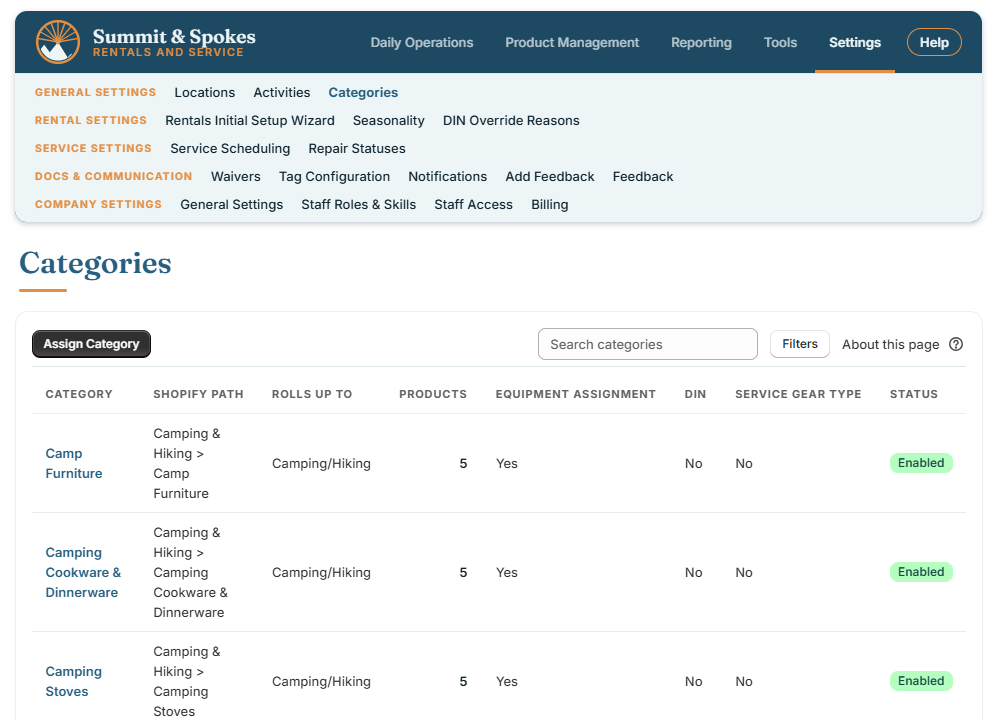
- Go to Settings → General Settings → Categories and click Assign Category. It lists every category your products use that is not assigned yet.
- Choose the activity it rolls up to.
- Say whether a DIN binding setting applies, and whether staff confirm a specific unit before pickup.
Step 3: Set up your locations
Every Shopify location appears under Settings → General Settings → Locations. Open each store you rent from and set:
- Offered activities: what this store rents or services.
- Hours: pickup and return hours for each day, closed days and holidays.
- Cutoff: how many hours before pickup online reservations close.
- Unpaid reservation hold: how long an online reservation keeps its gear before it is cancelled unless paid.
- Fees and policies: the drop-off fee and returns to other stores, the rental deposit, the damage waiver and its daily price, and early pickup or late return allowances.
Tip: seasons are optional. If you rent gear for a whole season, define your seasons under Settings → Rental Settings → Seasonality.
Step 4: Create your rates
- Go to Periodic Operations → Rentals → Rates and create a rate rule.
- Name it, choose the stores it applies to, and add its tiers: hourly, half day, daily with multi-day discounts, or a flat season price.
- Add late fees and a grace period if you charge them.
One rule can price many products. A ski package, a snowboard package and a helmet add-on usually each get their own.
Step 5: Add your gear
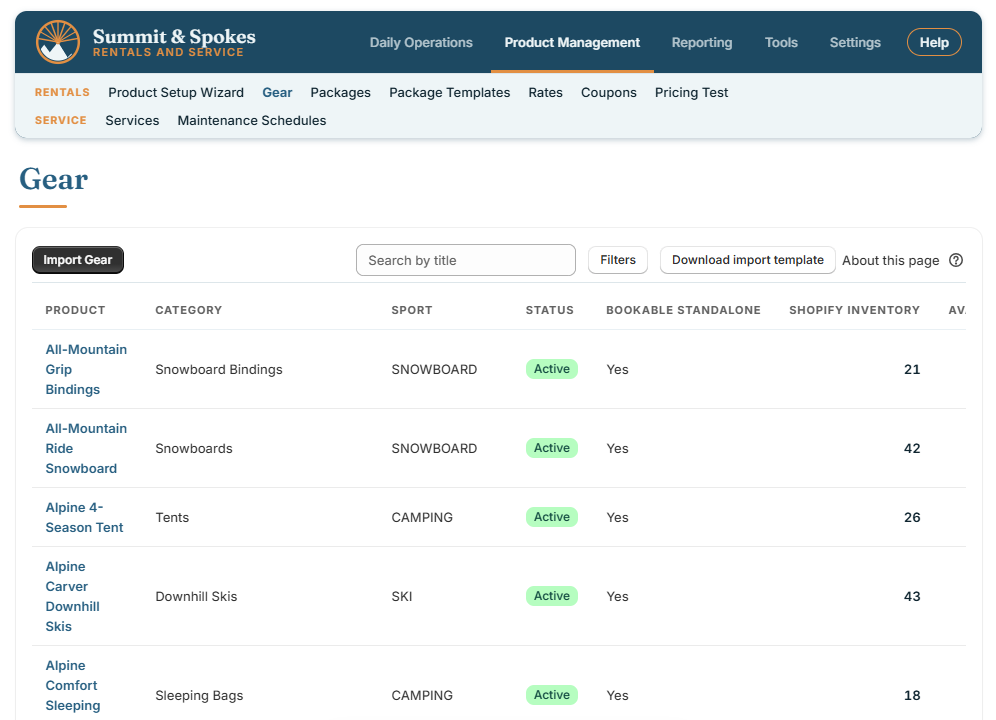
Each rentable item is a Shopify product. Add it one of three ways from Periodic Operations → Rentals → Gear:
- Add Gear: name, description, image, Shopify category, rate rule, sizes and price in one form.
- Import Gear: a CSV of products, sizes, inventory per store and units, with a preview before anything is saved.
- An existing Shopify product: open it on the Gear page and mark it rentable.
Then add the units. Every physical item gets a serial number, barcode, store, status and condition under its size on the Gear page, or in bulk with Import Gear Units. Units are what a reservation holds and what staff scan at pickup, so a product with no active units at a store cannot be booked there. Print labels prints a barcode label for each unit.
Step 6: Build packages
- Go to Periodic Operations → Rentals → Packages and create a package, such as Downhill Ski Package.
- Add a slot for each piece (skis, boots, poles). Each slot is filled from a category, so any matching gear in stock can be used.
- Set the activity, stores and rate rule, and turn on DIN applicable for packages with bindings.
Step 7: Check your work
- Product Setup Wizard (Periodic Operations) checks one product or package against everything above and says what is still missing.
- Pricing Test shows exactly what a product costs for any dates before a customer sees it.
Part 3: Get ready for customers
Waivers, DIN chart and messages
- Waivers (Settings → Docs & Communication): edit the liability text for each activity and for service. The app ships starter texts, not legal advice, so have yours reviewed by your own attorney before customers sign them.
- DIN Chart (Tools): have your certified binding technician compare it with the binding maker’s current chart and record the review on that page.
- Notifications: edit the emails and texts sent at each step, from confirmation to return. A reminder is sent only once you have saved its message. Texts go only to customers who opt in, after your text program is set up under Company Settings.
- Tag Configuration: design the printed tag that goes on the gear, for each store.
Add the reservation pages to your store
- Under Settings → Company Settings → Page Design, set your logo, titles, fonts and colors.
- In your Shopify theme editor, add the app’s blocks to pages: Rental booking wizard on a Rentals page, Service booking wizard on a Service page, and Seasonal booking wizard if you rent by the season.
- Link those pages from your store’s menu, along with /apps/rental/manage, where customers look up an order to cancel it.
Payments
Each reservation creates a Shopify order with payment pending. Customers pay online through Shopify’s checkout, or at your counter in Shopify POS (Orders → the order → Collect payment). If you would rather use Stripe, connect it for each store under Settings → Company Settings → Payments.
Part 4: Run a rental day
Take a reservation
- Go to Daily Operations → Rentals → Create Rental Order.
- Pick the pickup and return stores and the dates.
- Search for the customer or add a new one. Saved family members and sizes fill in for you.
- Add each participant’s activity and sizing, choose their package or items, and add the damage waiver if they want it.
- Have each participant sign their waiver on screen, or send it as a link.
- Click Create reservation. The Shopify order number appears right away.
Reservations customers make on your store’s pages land in Rental Orders the same way.
Get the gear ready
- Open the order, or go to Rental Gear Assignment, and confirm the unit picked for each item, or swap it for another.
- For ski bindings, set the DIN from the boot that was fitted, and confirm it once the binding is set at the bench.
- The order shows Ready for pickup once waivers are signed and gear is confirmed.
Pickup
- Open Pickup / Return on the order, or go to Daily Operations → Rentals → Rental Pickup / Return.
- Collect the deposit and payment if they are due.
- Scan each unit’s barcode as it goes out, or use Pick up all.
Return
- Scan each unit back in, or use Return all. Record each unit’s condition, any repair comments and a damage fee if needed.
- Release the deposit, keeping any amount for damage. The rest is refunded through Shopify.
- The Shopify order is marked fulfilled automatically.
Tip: the Rental Calendar shows the days ahead, and the Home dashboard lists today’s pickups and returns.
Part 5: Run the service workshop
Skip this part if you don’t take service work.
Set up the bench
- Settings → Company Settings → Staff Roles & Skills: define skills such as Wax, Tune and Binding Mount, each with a level, then give staff their skills under Staff Access.
- Periodic Operations → Service → Service Scheduling: enter the hours of bench time per weekday at each store and which skills each bench covers. This is how a drop-off date becomes a ready date your bench can keep.
- Periodic Operations → Service → Services: add each service with its time, price, member price and required skills, and whether it needs a DIN or a waiver.
Take and work a service order
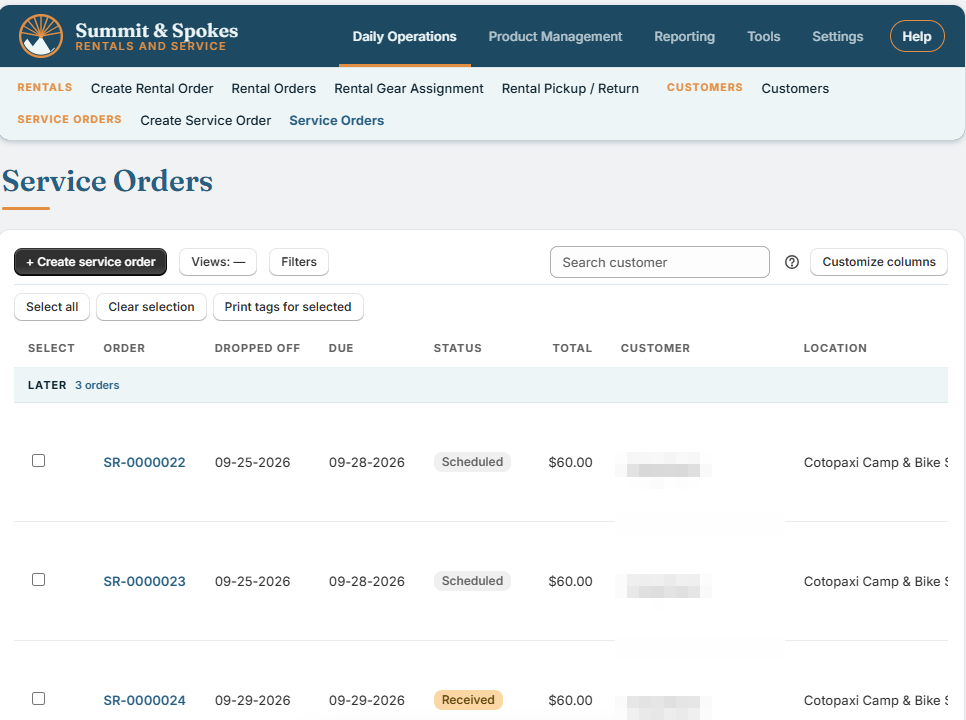
- Go to Daily Operations → Service Orders → Create Service Order. Pick the customer, store and drop-off date, then the services. The ready date comes from your bench schedule.
- Have the customer sign the service waiver, then create the order.
- Work it from its page one step at a time: mark the gear received, assign a technician, start work, set the DIN for binding work, sign off each job and record the work time.
- Mark it ready for pickup. When the customer collects it, they check the work and sign off, the order is paid, and you mark it picked up.
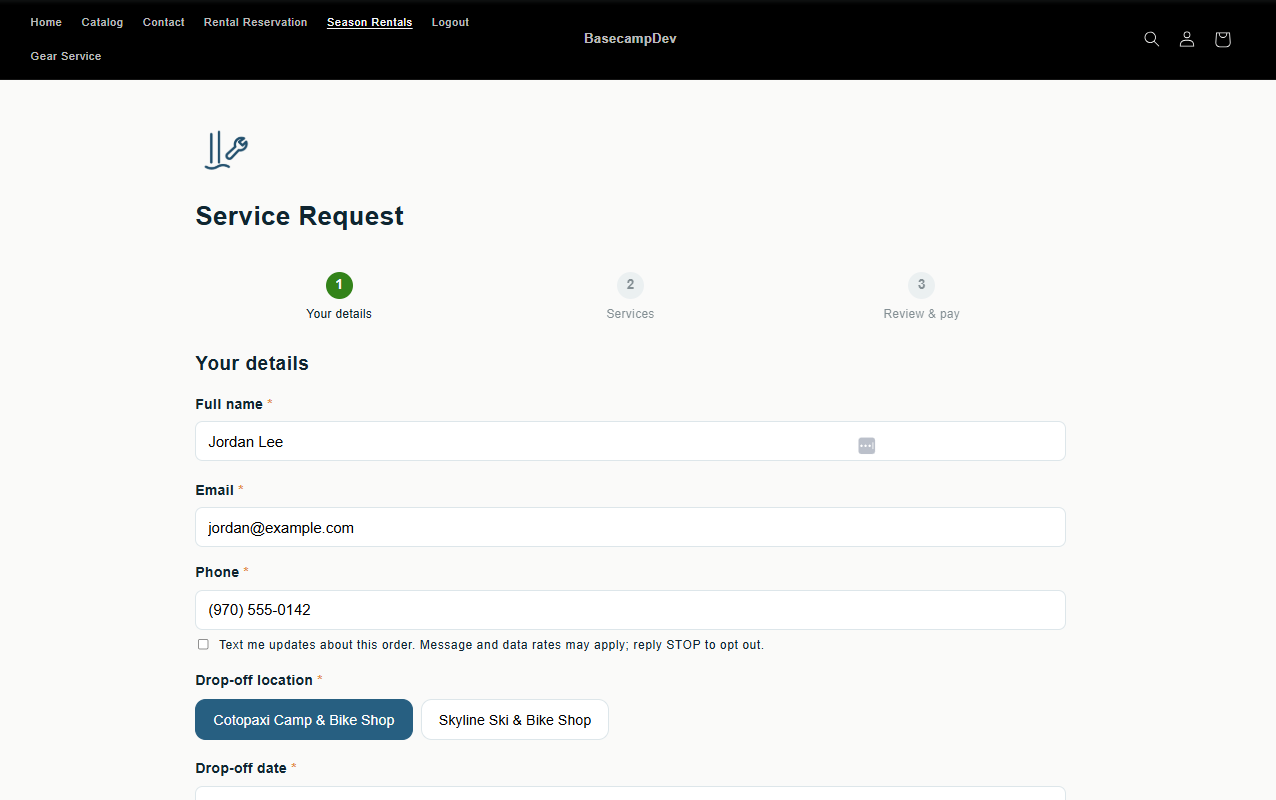
Customers can also request service online from your Service booking wizard page.
Look after your own fleet
Under Periodic Operations → Service, Maintenance Schedules send your rental gear to the bench automatically by rental days, rentals, hours of use, miles or months, and Repair Statuses decide what happens when a unit comes back damaged.
Part 6: Staff and reports
- Staff Roles & Skills and Staff Access (Settings → Company Settings): roles decide which pages and stores each staff member sees. Staff appear here after they first open the app, and the store owner is an administrator from the start.
- Reporting: sales, customers, gear usage, bookings and cancellations, and service, filtered by date, store and activity, with CSV export.
Next steps
Have a question? See the Rentals & Service FAQ or contact us. Inside the app, the Help button answers questions about any page, and Settings → Docs & Communication → Add Feedback reaches us directly.

